
Node.js is a popular, open-source runtime. It lets programmers run JavaScript code outside a web browser. Developers use it to create servers, command-line tools, and web applications. Your version of Node.js, like any program, matters. It can affect your code’s performance and available features. To create adaptable, high-performance web applications using JavaScript, install Node.js on Ubuntu.
This blog will show you how to use the command line to find the version of Node.js installed on your computer. We will see how to check the Node.js version on Linux and Windows. It will be a detailed guide. You will get a clear idea of how to check the Node version.
Version Checking for Node.js
Step 1: Open a Terminal or Command Window
Open your terminal or command prompt as a first step. There are various approaches to doing this, depending on your operating system. On Windows, press the Windows key + R. Type “cmd” and hit Enter to open the command prompt. On macOS, access the terminal by clicking Terminal in Applications, then Utilities.
Step 2: Enter the Command to Check the Version of Node.js
Open your terminal or command prompt, then type and hit Enter the following command: in which -v stands for version.
node -v
Step 3: Look at the Node.js Version
Node.js will output its version number to the console after the command has been executed. It will look or appear something like this below:
v14.17.0
You can see that you are using Node.js version 14.17.0 from this. Your system may use a different version number than the one shown here.
Alternatively, you can use the command below to view additional details about the Node.js version:
node --version
How Do I Check the Version of Node? [Version Check Node.js]
Installing Node.js on many platforms is possible because it is cross-platform software. It has undergone many updates with cutting-edge tools and technologies. On Linux, macOS, and Windows operating systems, you can install and verify the version of Node.js.
You can find instructions on how to check the installed Node version here. It also has guides for installing Linux, Windows, and macOS. Deploy your applications with UK virtual server hosting, leveraging isolated environments, high-performance SSDs, and customized configurations for seamless scalability.
Installation guide on Linux to check the version of Node.js
Here, Ubuntu is considered a Linux distribution. The Ubuntu repository contains Node.js, which is simple to locate and install using commands. To verify the node version on a Linux VPS as well, stick to the instructions below:
Step 1: To install Node.js, type this command in the terminal on your computer by pressing the keys Ctrl+Alt+t.
sudo apt install nodejs
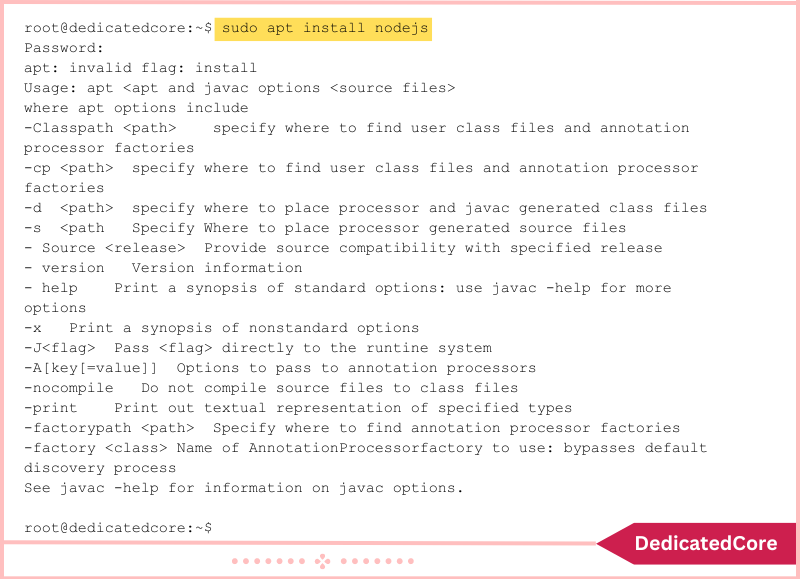
Step 2: Use the following node version command to verify the Node.js version you installed after the first step.
node -v or node –version

Step 3: Installing Node.js along with the Node package manager is strongly advised. You can access the Node.js packages’ open-source library with NPM. To install NPM, use the steps listed below.
sudo apt install npm

-v or npm –version
Installation Guide & Checking Node.js Version on Mac
The steps listed below can be used to install Node.js on macOS.
- Step 1: Select macOS on the Node.js official download page.
- Step 2: Launch Node.js. The pkg installation that was downloaded.
- Step 3: After the download is complete, launch the installer, agree to all the terms, and select Install to complete the process.
- Step 4: After the installation is finished, you will find the Node version installed on your machine.
Run this Node.js command. To determine the Node.js version, use the get version command.
$ node -v

Installation Guide on Windows to Check the Node Version
You need administrative permissions on your user account and the command line to install Node.js on a Windows computer. If you wish to install and test the Windows version of Node.js, follow the instructions below.
- Step 1: Open the Node.js official download page and click the Windows installer link. By default, it will begin downloading the most recent version. An NPM package manager is included with the NPM installation.
- Step 2: Launch the installer after the download is finished. Open the directory where your downloaded files are kept.
- Step 3: Confirm your decision to execute the software by clicking Execute when prompted.
- Step 4: You will be added to the Node in this step. JS setup wizard, then select Next.
- Step 5: After agreeing to the terms and conditions, you will be asked to accept the license. Click Next to begin the program installation.
- Step 6: When prompted, choose to leave the default location for the software or enter the correct path, then click Next.
- Step 7: Next, choose the elements you want to include and don’t want to include as necessary, then click Next.
- Step 8: Finally, you can select Install to launch the installer and select Finish.
You may check the Node.js version that is installed by entering the following command at the command prompt.
node –v

Advantages of Node.js
- High Performance: Developers designed Node.js for fast, scalable performance. The renowned Chrome V8 JavaScript engine, which is quick and efficient, serves as the basis for it. Node.js uses a great event-driven, non-blocking I/O mechanism. It lets it handle many concurrent connections.
- Many Node.js packages and modules make it easy to use third-party libraries for various tasks. The Node Package Manager (npm) has over a million packages. They range from database drivers to web frameworks.
- Node.js is easy to learn. It uses JavaScript, a popular programming language. Many people use it worldwide. If you know JavaScript, learning Node.js will be easy. You can then start creating apps right away. The syntax of JavaScript is simple to learn and comprehend, even if you are a beginner.
- Cross-Platform Compatibility: Node.js works with Windows, Linux, and macOS. You can create apps on any platform and run them anywhere without changes.
- Microservice Architecture: Use Node.js to create small, independent services. They should work together to build a larger app. This method makes it easy to scale and maintain large, complex programs.
- Node.js is great for real-time apps, like chat programs, online games, and live streaming. It can manage many connections at the same time and send data with no delay.
- Community Support: Node.js has a large, vibrant developer community. They advance the platform and support each other. The community updates and improves Node.js regularly. Each release boosts its robustness and features.
Final Thought on How to Check Node Version
In summary, Node.js has many advantages. It makes it perfect for building scalable, high-performance, real-time apps. Developers like it for its ease, cross-platform support, and vast package ecosystem. Once you’ve installed Node.js, selecting the right backend framework is key for your project. Dive into our guide on Node.js versus Django comparison to evaluate their strengths in performance and development workflows.
Node.js is a strong, popular framework for server-side apps. High performance, a diverse ecosystem of packages, and an understandable syntax. It has many advantages. They include cross-platform interoperability, a microservices architecture, real-time apps, and community support. Developers can build strong, scalable apps that meet today’s needs. They can take advantage of these benefits to meet both organizations and customers.
Frequently Asked Questions (FAQ)
1. How can one ensure that the Node.js version being installed works well with the dependencies of their project?
Project dependencies sometimes require particular Node.js versions, and if a mismatch takes place, runtime errors may be triggered. Look into the package.json file of the project for the engines field to check for supported versions. Switching to a compatible version must be done with the help of a version manager, thus maintaining the isolated environment for other projects.
2. What kinds of conflicts occur while checking the Node.js version for runtime programmatic use?
Because, for example, programmatic introspection or examination of the process. version property for determining a Node.js version can differ from what the version commands yield in a terminal if the runtime environment, such as a container or virtual environment, has another Node.js version than the default one on the system. Checking to see if the different climate is currently activated and verifying the runtime context resolves such conflicts.
3. Why is it necessary to check the current Node.js version to install?
Keeping the latest Node.js version installed ensures access to the newest features, performance improvements, and security patches, all of which are paramount to building a solid application. Using outdated versions can cause compatibility issues with newer libraries, making them vulnerable and affecting project stability and security, especially in server-side or real-time applications.

