
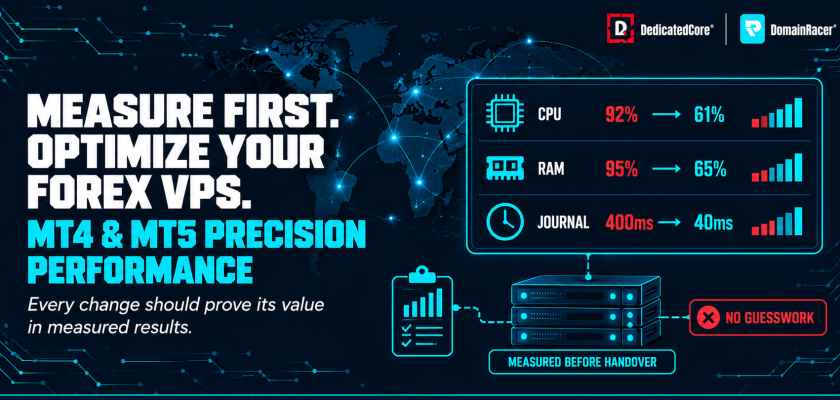
Most Forex VPS optimization guides hand you the same list — close unused charts, set the High Performance power plan, disable Windows Update. The advice isn’t wrong; it’s just incomplete. Stratos Group’s 2024 execution data showed that 14.64% of all orders experienced negative slippage. That figure, though, captures only the delay on the broker’s side. FXCM’s published average execution speed sits at 17 milliseconds from order receipt to fill. Everything between your EA’s decision and that receipt is time your VPS adds.
DedicatedCore and DomainRacer optimize Forex VPS servers one layer at a time. The layers are terminal settings, Windows tuning, the network path, and housekeeping. We measure before and after every change we make. This guide walks through each layer with the exact settings, numbers, and methodology we use on production trading servers.
MT4 and MT5 Optimization: Terminal Settings That Reduce Resource Usage
The terminal itself is where most wasted resources hide, and the easiest layer to fix.
- A fresh MT5 instance uses 200–500 MB of base RAM — each active EA adds 50–150 MB on top, depending on history caching and parameter complexity
- Max bars in chart (Tools → Options → Charts) — drop to 5,000–10,000 bars to cut RAM per chart by 30–60%. Some mean-reversion strategies reference 50,000+ bars, so check before cutting
- Market Watch symbols (right-click → Hide All, show only traded pairs) — reduces tick processing load, especially during news when XAUUSD pushes 50 tick updates per second
- News/Economic Calendar (disable in Server/Community options) — stops background HTTP requests and RAM for rendered content
- Sound events and chart grid — minor CPU/GPU savings; disable both unless you need visual indicators
- On a 4 GB VPS where Windows Server claims 1.5–2 GB, three terminals with two EAs each push past 80% RAM before the market opens
- Measure RAM and CPU after each change — you want to see the numbers move, not assume
We plan to ship with a pre-configured MT4/MT5 template that applies these settings automatically. DomainRacer Forex VPS also includes setup guides for traders who like to set things up themselves. Both approaches start from a documented baseline that shows exactly what each setting changed.
Forex VPS Performance Comparison: Baselines, CPU Allocation and Monitoring
What you get depends entirely on who sets up the server.
| What decides performance | Typical budget host | Average managed host | DedicatedCore / DomainRacer |
| Pre-handover baseline | Not measured | Not measured | Five-metric baseline documented before handover |
| MT4/MT5 template | Not provided | Generic guide | Pre-configured terminal with settings applied |
| Windows tuning | Default install | Power plan only | Power plan, services, Defender exclusions, update scheduling |
| CPU allocation | Shared, no guarantee | Shared with limits | Dedicated vCPU with DDR5 RAM |
| Network measurement | Ping only | ICMP average | TCP connect, p50/p95/p99, jitter, packet loss |
| Ongoing monitoring | None | Uptime only | Disk, RAM trends, CPU, proactive alerts |
| Post-change verification | Left to trader | Left to trader | Measured and documented per change |
The last row is the whole difference. Anyone can apply a list of tweaks — very few measure whether any of them worked.
Forex VPS Benchmarking: Measure CPU, RAM, Disk, Latency, and Execution Time
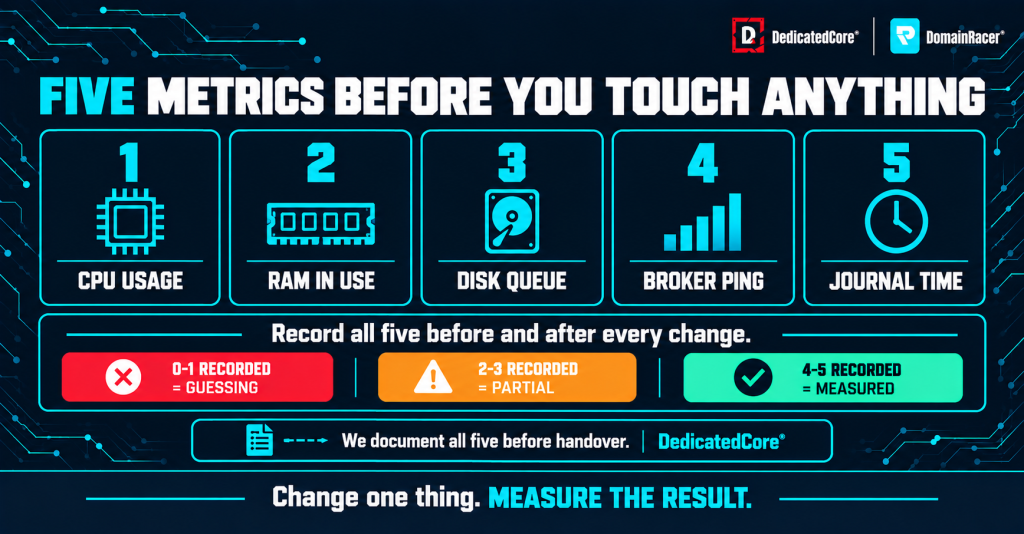
DedicatedCore’s five-metric Forex VPS optimization checklist helps traders measure CPU, RAM, disk, broker latency, and Journal timing before and after every change.
Record a baseline across five metrics during both quiet hours and a major session open before touching anything.
- CPU usage in Task Manager → Performance tab — below 70% sustained during session opens
- RAM in use in Resource Monitor → Memory tab — below 80% of allocated, no steady climb over days
- Disk queue length in Resource Monitor → Disk tab — below 2 on NVMe, above 4 means bottleneck
- Ping to broker in MT4/MT5 status bar — stable within 2 ms of baseline, no spikes above 3×
- Journal timings in Terminal → Journal tab — order send-to-confirmation under 100 ms consistently
- Change one thing at a time — if you adjust two settings and RAM drops, you won’t know which one did the work
- Record date, time, market session, and all five readings in a spreadsheet before every change
We run these benchmarks on every Forex VPS before handover. The server reaches the trader with its baseline already documented, so the first set of numbers exists before a single EA is installed. Most providers hand over a fresh Windows login and leave the rest to you.
Forex VPS Optimization for Multiple EAs: Manage CPU Cores and Memory
This is where most performance problems live — not in a single terminal, but in three or four fighting over the same resources.
- Install each MT4 or MT5 copy into its own folder with its own program directory, data folder, and configuration
- Two vCPUs: don’t pin CPU affinity; let Windows schedule freely
- Four vCPUs: pin your most critical EA’s terminal to cores 0–1, let others float across 2–3
- Eight+ vCPUs: pin each terminal to its own core pair to prevent one EA’s tick storm from stealing cycles from another
- A clean Windows Server 2022 with RDP uses around 1.5 GB — add 300–400 MB per MT5 terminal, plus 50–150 MB per EA
- On a 4 GB VPS, that gives room for two terminals with moderate EAs before the warning zone
- Keep Strategy Tester and optimisation passes off the live VPS — a backtest pins all cores at 100% for hours
Our dedicated vCPU plans run on DDR5 RAM, so each terminal gets guaranteed CPU time instead of shared cycles. No noisy neighbour steals resources during the London open, when contention on shared plans hits hardest. Our VPS versus dedicated server versus home PC comparison explains when a shared plan stops being enough.
Windows Server Optimization for Forex VPS: Settings for MT4 and MT5
The operating system sits between MetaTrader and the hardware. A badly configured Windows installation adds overhead to every tick and every order.
| Setting | What to change | Why it matters for trading |
| Power plan | Set to High Performance via powercfg /setactive 8c5e7fda-e8bf-4a96-9a85-a6e23a8c635c | Balanced throttles CPU — a scalping EA needs the CPU already awake when a tick arrives |
| Visual effects | System Properties → Advanced → Adjust for best performance | Disables animations, transparency, font smoothing — the EA doesn’t see any of it |
| Unused services | Disable Print Spooler, Windows Audio, Windows Search via services.msc | Frees RAM and CPU — document changes because disabling the wrong service breaks RDP |
| Windows Update | Active hours Sunday 22:00 – Friday 22:00 UTC, or Group Policy “No auto-restart” | The single most common cause of unexpected reboots mid-trade |
| Pagefile | 1.5× physical RAM on the NVMe drive — don’t disable | Protects against out-of-memory crashes during news — negligible cost on NVMe |
| Defender exclusions | Add MT4/MT5 directories to the exclusion list | Stops real-time scanning on every DLL load — we’ve seen startup times drop 15–20% |
We ship Windows Server 2022 already configured. The power plan, visual effects, update scheduling, and Defender exclusions are all set before handover. MetaTrader needs a graphical interface, and Server Core does not provide one. So we install a minimal Desktop Experience, with every unused role removed. Our Windows Server 2019 vs 2022 vs 2025 comparison covers what each version adds for trading workloads.
Forex VPS Latency Optimization: Ping, Routing and TCP Settings Explained
DedicatedCore measures CPU usage, RAM consumption, and MetaTrader Journal timing before and after optimization to demonstrate real performance improvements.
Physical distance sets the floor, and no software tweak can beat physics. London to New York through fibre runs about 28 ms each way, while London to Frankfurt runs around 4 ms.
- Read the ping in your terminal — the MT4/MT5 status bar shows connection latency. A jump from 2 ms to 40 ms at the London open suggests routing congestion, not a VPS problem
- Trace the route — run tracert [broker-server-address] and count hops. A good route to a broker in the same facility shows two to four hops
- TCP NoDelay registry setting — TcpNoDelay=1 and TcpAckFrequency=1 can cut latency by 1–5 ms on some connections. On other configurations, the same change makes no measurable difference.
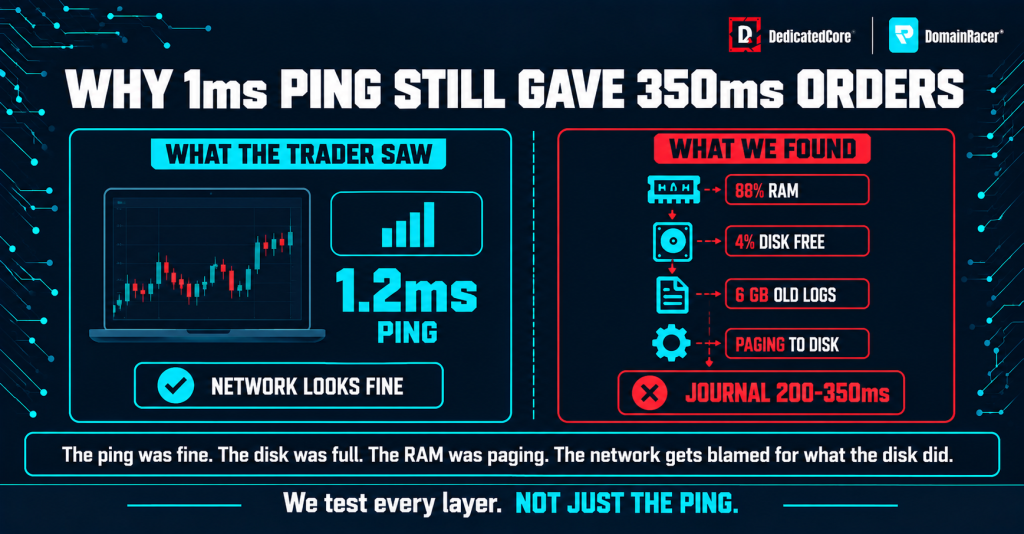
- What ping leaves out — a 1 ms ping doesn’t mean 1 ms execution. The broker’s risk checks, liquidity aggregation, and price validation add time no VPS optimisation can touch
We run Forex VPS servers with sub-1 ms latency to Equinix LD4 and LD5. Many major brokers operate their matching engines in those same facilities. That proximity is physical — same campus, direct network path, minimal hops. Our Equinix LD4 and LD5 proximity guide maps which brokers run in which facility so you can verify before you commit.
Forex VPS Performance: Optimize RDP Settings Without Stopping Live EAs
Every RDP session consumes resources — the heavier the session, the less is left for your EAs.
- Set colour depth to 16-bit instead of 32-bit — you won’t notice the difference on a trading terminal
- Disable desktop wallpaper, font smoothing, and visual styles under the RDP Experience tab
- Disconnect rather than log off — logging off terminates every program, including your EAs. Disconnecting keeps the session running in the background
DomainRacer’s Windows VPS plans include 24/7 RDP access with session management support. If your session disconnects unexpectedly, the trading session stays active on the server. Network drop, laptop closes, browser crash — none of it matters, and you reconnect exactly where you left off.
Forex VPS Maintenance: Manage Logs, Disk Space and Performance Drift
A Forex VPS that runs well in week one can slow down by week eight if nobody cleans up after it.
- MetaTrader writes logs constantly — Terminal journal, EA logs in MQL4/Logs or MQL5/Logs, and crash dumps all accumulate
- On a 40 GB NVMe partition, a few months of unmanaged logs can eat 5–10 GB. Once disk usage crosses 85%, Windows slows its writes and background services compete for the remaining space.
- Weekly: clear logs older than 7 days, check disk space, note peak RAM for memory leak trends, restart terminals to clear accumulated memory
- Monthly during weekend close: apply Windows updates Friday after market close, reboot Saturday, verify Sunday
- Monthly: compare journal timings against your original baseline to catch performance drift
We keep a proactive watch on disk space, CPU trends, and memory usage across all Forex VPS servers. When a drive approaches capacity or RAM shows a sustained climb, we flag it before it affects trading. Our Forex VPS failure case studies show what happens when nobody catches the warning signs in time. (forex-vps-failure-case-studies)
Forex VPS Resource Sizing: Match vCPU, RAM and Storage to Your Trading Workload
If the plan is undersized for the workload, no amount of optimisation will fix it.
- Windows Server 2022 with Desktop Experience and RDP needs 1.5–2 GB before MetaTrader loads — MT4’s official minimum is 512 MB, but that dates from single-pair setups
- 1–2 terminals with simple EAs for swing trading: 2 vCPU, 4 GB RAM, 40 GB NVMe
- 3–4 terminals with moderate EAs for day trading: 4 vCPU, 8 GB RAM, 60 GB NVMe
- 5+ terminals or heavy EAs for scalping/news trading: 6–8 vCPU, 16 GB RAM, 80 GB+ NVMe
- Backtesting and optimisation (separate from live): 4–8 vCPU, 8–16 GB RAM, 100 GB+ NVMe
- Each terminal with two EAs needs roughly 400–700 MB of RAM beyond the OS
- Look for an uptime SLA of 99.95% or higher — roughly 4.4 hours of permitted downtime per year
DedicatedCore Forex VPS plans start from the sizing above with dedicated vCPU, DDR5 RAM, and NVMe on every tier. DomainRacer covers traders who need a lower entry point with the same London-region connectivity. Our proximity and network measurement methodology covers this matching process in full. It shows how to line up your plan with your broker’s server location.
Forex VPS Optimization Through Our Real-World Examples
Our case studies follow multi-terminal trading setups and show what they gain from balanced resources. That balance covers CPU, RAM, storage, and the network path. We look at how terminal count, chart activity, and Expert Advisor workloads shape performance. Each case study then points to a practical optimization the trader can apply.
Case Study 1 — Based on a typical multi-terminal customer setup.
Customer: A trader running four MT5 terminals with six EAs across major and minor pairs on a 4 GB VPS. Terminals freeze for 2–3 seconds during the London open. RAM usage hits 95% by Wednesday each week.
Our solution: We measured the baseline first. CPU averaged 45% during quiet hours but spiked to 92% at the London Open. RAM sat at 3.7 GB out of 4 GB, with no headroom left for tick bursts. We reduced Max Bars from 50,000 to 10,000 across all charts and closed eight charts that no EA used. We added Defender exclusions for all four MT5 directories and set CPU affinity to spread the terminals across cores. Finally, we upgraded the plan from 4 GB to 8 GB.
The result: Peak CPU dropped to 61% during the London open. RAM settled at 5.2 GB out of 8 GB. Terminal freezes stopped entirely. Journal timings went from 180–400 ms down to 40–90 ms.
Case Study 2 — Based on a typical single-terminal latency-sensitive setup.
Customer: A scalping EA on one MT5 terminal, trading EURUSD and GBPUSD during the London–New York overlap. Ping showed 1.2 ms in the status bar, but journal entries recorded order confirmations taking 200–350 ms.
Our solution: CPU was fine at 30%, but RAM was at 88% — Windows was paging to disk during tick bursts. The pagefile sat on a partition with 4% free space. We cleared 6 GB of accumulated logs and resized the pagefile to 1.5× RAM on clean NVMe space. We also applied the TCP NoDelay registry change and disabled three unused Windows services.
The result: Journal confirmation times dropped to 35–80 ms. The TCP NoDelay change accounted for roughly 3 ms; the disk cleanup and pagefile fix accounted for the rest. Ping stayed at 1.2 ms — the network was never the problem.
DedicatedCore’s Expert Answers to Windows Server Forex VPS Questions
We’re often asked how much RAM an MT4 or MT5 trading setup needs. In our experience with Forex VPS workloads, memory needs grow with everything that runs at once. Each terminal, chart, and Expert Advisor draws RAM together, and busy trading sessions need extra headroom on top of that.
How much RAM does a Forex VPS need for MT4 and MT5?
We size it based on what actually runs, not on the platform’s minimum specification. MT4’s published minimum is 512 MB, which covers the terminal and nothing else. Windows Server needs 1.5–2 GB on its own, and each MT5 instance adds 200–500 MB of base RAM before any EA loads.
Each EA adds 50–150 MB on top depending on parameter complexity and history caching. For a practical single-terminal setup, 4 GB is the realistic minimum — three or more terminals, we recommend 8 GB and measure from there. Our CPU, RAM and disk sizing guide for Forex VPS walks through the full calculation with examples.
Should I turn off Windows Update on my Forex VPS?
We don’t recommend disabling it entirely — security patches matter, and an unpatched server is a liability. The single most common cause of unexpected mid-trade reboots is an update that nobody scheduled. It installs itself during trading hours, while the market is live.
What we do is schedule updates for the weekend market close. Set active hours to cover Sunday evening through Friday evening. Apply updates manually on Saturday and reboot the server. Before the market opens on Sunday, verify that everything has restarted cleanly. Our common Forex VPS issues guide covers what to check if something goes wrong after an update.
Can I run backtests on the same VPS that runs my live EAs?
We tell traders to keep them separate, and both case studies above show why resource contention is the real performance killer. A Strategy Tester optimisation run pins every CPU core at 100% for hours, sometimes days. On a VPS that also runs live EAs, your trades compete for those same cycles.
During a tick burst, the backtest wins because it’s already consuming everything. Run backtests on a second VPS, your home PC, or during the weekend close when no live positions are open. Our Forex VPS troubleshooting guide covers how to diagnose contention when you’re not sure what’s causing the slowdown.
Ready to Improve Your Forex VPS Performance? Start With a Measured Baseline
The difference between a VPS that trades well and one that just looks configured is whether anyone measured the result. Every tweak in this guide follows the same simple discipline. That holds for terminal settings, Windows tuning, the network path, and housekeeping alike. Record the baseline, change one variable, and measure the outcome each time. Traders who skip the measurement step end up with a server full of registry edits and no idea which one actually helped. Our pre-market and post-market health checklist gives you a repeatable routine to keep your VPS performing week after week without guesswork.
DedicatedCore and DomainRacer come with baselines already measured, dedicated vCPU with DDR5 RAM, and NVMe storage on every plan — so the first number exists before you change a thing. Start with a 30-day trial backed by a 30-day money-back guarantee and see where your own numbers land.

