
Troubleshooting often starts in the wrong place, because the symptom and the cause sit on different layers. One case documented on the MQL5 forum shows this clearly. A trader could reach port 443 from their VPS with no trouble, so the internet was obviously working. Yet the broker’s own trading port failed every time, with every broker they tried. The platform was fine, and the network was fine. The data centre IP range was the problem, and nothing in the terminal said so.
DedicatedCore and DomainRacer find problems by layer, not by the symptom you see. This approach matters because fixing the wrong layer can end your session and doesn’t teach you anything valuable. When symptoms can originate in several layers, traders can consult a layer-by-layer fault-isolation handbook for a structured way to narrow down the fault. This guide works through the four layers in order.
DedicatedCore Method for Diagnosing Forex VPS and MetaTrader Issues
Most support processes start with whatever the customer described. We start by determining which of the four components is broken, because the same symptom can appear in any of them.
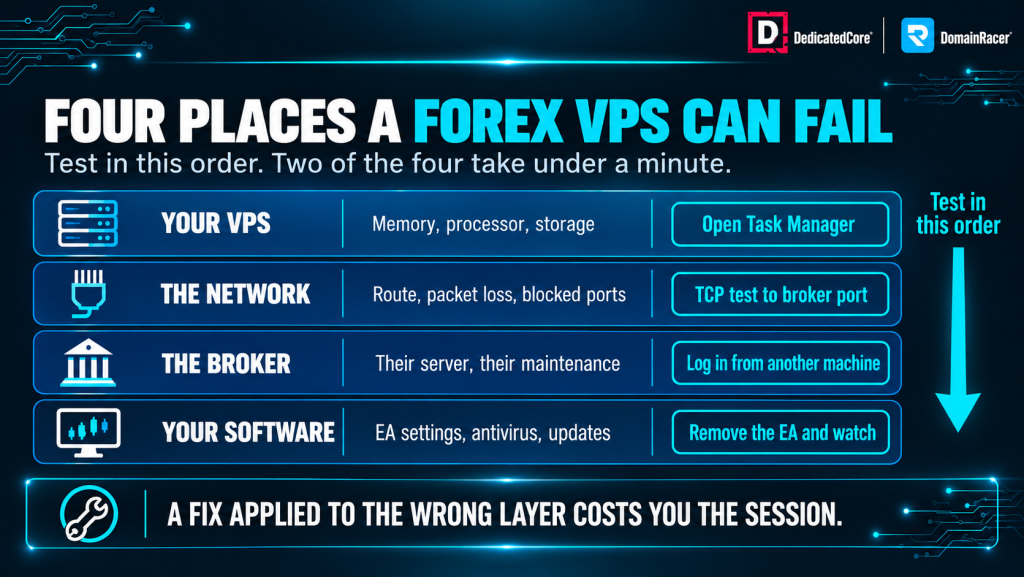
Test the VPS, network, broker, and software to find the fault. Before investigating the network and broker layers, traders can use the Best Forex VPS Performance Checker to assess the VPS side of a performance problem.
- The VPS — resources, disk, or the operating system itself.
- The network — routing, packet loss, or a blocked port between you and the broker.
- The broker — server maintenance, account status, or their own infrastructure.
- The EA — logic, permissions, DLL access, or a licence check failing quietly.
Two of those four you can rule out in about a minute, which is why we test in that order rather than by whichever seems most likely.
Most hosts skip straight to a rebuild because it closes the ticket. It also destroys the evidence, so the same problem returns next month with nobody wiser.
Forex VPS Troubleshooting Support Compared Across Hosting Providers
Every host has a support queue. The difference is what happens between your message and a fix.
| What decides your outcome | Typical budget host | Average managed host | DedicatedCore / DomainRacer |
| First response | Canned reply, hours later | Ticket triage | Layer diagnosis before reply |
| Diagnostic evidence | None requested | Screenshots | Logs, steal time, route data |
| Broker port testing | Not offered | On request | Standard first check |
| MetaTrader knowledge | None | Basic | EA, DLL and platform level |
| Standard fix | Reboot or rebuild | Reboot | Root cause, then fix |
| Evidence retained | Wiped on rebuild | 24 hours | Kept for post-incident review |
| Escalation path | None visible | Tier 2 | Named owner, network access |
| What you are left with | A working server, same bug | A resolved ticket | A problem that stays fixed |
That fifth row is the whole product. A rebuild resolves the ticket and loses the cause. That is why traders on budget hosts describe the same failure two months apart as if it were new.
Forex VPS Troubleshooting Method for Network, Broker, VPS, and EA Issues
Run these four checks before contacting anyone. They take about five minutes and eliminate most of the search space.
- Test the VPS. Open Task Manager. Memory above 90 percent or a climbing disk queue means the cause is resources, not the platform.
- Test the network. Run a TCP connect test to the broker’s trading server on its actual port, not a ping to a website. A reachable host with a dead trading port points to a network or IP-range issue.
- Test the broker. Log in from a second machine on a different connection. If it works there and fails on the VPS, it narrows to the server or its network path.
- Test the EA. Remove the EA and watch the terminal alone. A stable terminal without it points to logic, permissions, or a licence check.
That second check is the one nobody runs, and the gap between ping and a real endpoint test is where most wasted troubleshooting hours go. Traders invest in low-latency performance. They ping a website, see it respond quickly, and conclude the network is working well. However, the port their broker requires is filtered, causing potential issues.
Once the test points to a layer, work the matching section below. Everything from here is detailed within one of those four, not a list to read end to end.
Forex VPS RDP Troubleshooting for Connection and Access Problems
RDP failures look alarming and are usually very ordinary. Work down the list.
- RDP times out entirely — the VPS is off, the firewall changed, or a rate limit blocked your address after failed attempts.
- RDP connects then drops — network instability on your side, or memory pressure starving the session.
- RDP is slow and laggy — usually your connection rather than the server, though a saturated disk produces the same feel.
- Credentials rejected after a password change — the change may not have propagated, or you are hitting a cached session.
- Two sessions already active — Windows Server allows for two administrative sessions at the same time. If a user attempts to start a third session, it will be refused.
That last one catches teams constantly, and the error message does not explain it. More than two simultaneous users need RDS licensing, which the Windows Server licensing comparison explains in detail. Most hosts let you discover this at the worst moment.
Forex VPS Troubleshooting for MT4 and MT5 Terminal Problems
Terminal issues split cleanly into connection, data, and display. Diagnose in that order. The same sequence applies to cTrader and NinjaTrader, though the log location differs.
- No connection — check the trading port first, not the internet. Broker ports are often blocked on data centre IP ranges while general browsing works.
- Connection lost repeatedly — packet loss on the route, or a broker-side session limit if you are logged in elsewhere.
- Wrong or frozen prices — the terminal is connected but not receiving ticks. Refresh the symbol, then check the Journal tab.
- Charts missing history — history download failed or was interrupted. Delete the affected symbol history and redownload.
- Terminal will not start after reboot — auto-start was never configured, which is a provisioning gap rather than a fault.
The Journal tab answers more of these than any other source, and almost nobody opens it. It records every connection attempt and every rejection in plain text, with timestamps and reasons.
Forex VPS EA and Indicator Problems: Troubleshooting Common MetaTrader Issues
EA failures rarely announce themselves clearly, which is what makes them expensive.
- EA loads but does not trade — check that AutoTrading is enabled globally and on the chart, and that the smiley face is present.
- EA disappears after restart — the template was not saved, so the chart reopened without it.
- DLL calls fail silently. This can occur if permissions are incorrect, or if Windows Server 2025 security defaults block an unsigned library. If your EA depends on Windows-specific components or DLLs, DedicatedCore Windows VPS gives you a Windows-based environment for running the trading setup.
- Antivirus quarantines the EA — common with compiled EX4 and EX5 files, and the EA simply vanishes.
- Licence check fails — the EA was validated against your old IP, and the VPS has a different one.
That last one surprises traders who migrate. Many commercial EAs bind their licence to a machine or an address, so moving to a VPS invalidates it until you reissue. We flag this at provisioning, because finding out afterward costs a weekend of strategy downtime.
Forex VPS CPU, RAM, and Disk Performance Issues Affecting Trade Execution
Slowness is hardest to fix because four problems feel the same and scalpers notice them first.
- Memory exhaustion — the server is paging to disk. Check committed memory during a session open rather than overnight.
- CPU contention — another tenant is consuming your scheduled time. Check steal time before blaming your own workload.
- Disk saturation — a history download, a backtest, or unmanaged log growth filling the queue.
- Too many charts and indicators — rendering competes with execution inside the terminal itself.
Check them in that order, because memory is the fastest to rule out, and contention is the one you cannot fix from inside the VPS. A disk that has slowed with age produces the same reading as a busy one, which is a hardware risk question rather than a workload one. The difference between a resource limit and an allocation limit, explained in how MT5 workloads use CPU allocation, decides which fix applies. When freezes occur mainly during busy market periods, traders can use a shared-processor contention check to investigate possible contention behind the stated CPU allocation.
Forex VPS Network and Latency Problems Between Your Server and Broker
Network faults produce symptoms that look like broker problems, which is why traders switch brokers and keep the fault.
- Requotes clustering in short windows — packet loss on the path, not broker rejection.
- Latency stable but fills poor — the network is fine, and execution latency at the broker is the constraint.
- Latency good overnight, poor at session open — congestion on a peering point, or contention on your node.
- Latency permanently higher than expected — proximity, not a fault. A server far from your broker’s LD4, LD5, or NY4 gateway cannot be tuned closer.
- Specific broker unreachable, others fine — an IP-range block or port filter rather than a routing fault.
- Traceroute shows a new path — routes change without notice, and your measured latency changed with it.
Check location first. Once you know which broker location you need, the location-based hosting plans from DedicatedCore let you choose the setup around that trading requirement. If the VPS is far from your broker, no other fix works and you need a closer server near the right Equinix site. Save proof before you open a ticket because these issues come and go. Steady packet loss can also mean an attack higher up the path, and that is why loss is monitored as an attack signal rather than treated as noise.
Forex VPS Reboot Problems and Auto-Recovery Configuration
Reboots are the most avoidable category on this list and one of the most costly, because the reboot itself is rarely the damage. What decides the cost is whether the terminal comes back.
What Goes Wrong When Windows Reboots Mid-Session
- Server rebooted mid-session — default update settings, tuned for an office rather than a trading floor.
- Terminal did not relaunch — auto-start was never configured, so positions ran unmanaged.
- Update installed during a news release — no maintenance window was set.
- Reboot loop after an update — rare, but it needs a rollback rather than repeated restarts.
Every one of those is configuration rather than fault. The server did what it was told, and nobody told it anything different.
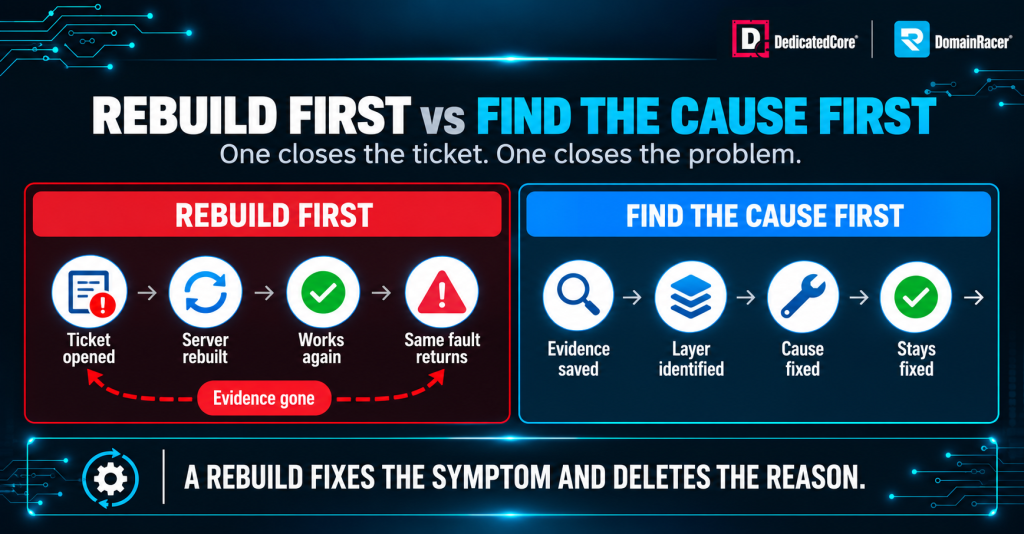
Finding the root cause prevents the same Forex VPS problem from returning.
The Four Settings That Make a Restart Harmless
- Terminal auto-start on boot — via startup folder or scheduled task, so no human is needed.
- Auto-login to the trading account — saved credentials, so the terminal connects rather than waiting.
- Charts and EAs restored from template — saved profiles, so the layout returns intact.
- AutoTrading enabled on launch — otherwise the EA loads and does nothing.
Most traders think it works until a sudden restart leaves the terminal logged out and AutoTrading off. Teams running multiple terminals across accounts often find our dedicated server simpler to configure for auto-recovery, since every session sits on the same machine with one update policy.
DomainRacer’s Pre-Trading Weekly Health Checklist for a Forex VPS
Two short routines catch most problems before they cost anything.
| When | Check | What you are looking for |
| Before each session | Terminal connected, AutoTrading on | Green connection status, smiley on every chart |
| Before each session | Memory and disk headroom | Below 70 percent on both |
| Before each session | EA journal for overnight errors | Silent failures from the previous session |
| Weekly | Log folder size | Growth that will fill the disk within twelve months |
| Weekly | Windows update status | Pending reboots waiting for the worst moment |
| Weekly | Latency and packet loss to broker | Drift from your baseline |
| Monthly | Deliberate reboot test | Auto-recovery still works end to end |
The monthly reboot test is the one people skip and the one that pays. To test recovery readiness rather than rely on old settings, traders can follow restore steps for failed servers for guidance on backup and restore procedures. Auto-recovery configured six months ago and never tested is a setting you hope works. For traders who want a VPS that can be checked against these same pre-trading requirements, the India-based trading VPS plans from DomainRacer are another option to consider.
Forex VPS Support Escalation: Logs, Resource Data, and Broker Details
Good tickets get fixed faster because they skip the diagnostic round trip.
- What changed and when, with timestamps in a stated timezone.
- Which of the four layers you ruled out, and how.
- The Journal tab extract covering the failure window.
- Resource readings at the time, not now.
- The broker server address and port you were connecting to.
We ask for these because they let us start at diagnosis rather than at questions. If the layer turns out to be physical, replacement speed decides how long you stay down. A host answering with “please reboot and confirm” has told you their process, and your evidence disappears the moment they rebuild.
Forex VPS Troubleshooting Outcomes From Our Real-World Examples
We regularly troubleshoot Forex VPS issues that can interrupt trading, from blocked broker ports to network restrictions. These case studies show how we identify the cause, resolve connectivity problems, and help restore reliable access to trading platforms.
Case Study 1 — A broker port blocked on the data centre range.
Customer: A trader could not connect to any broker from a new VPS even though normal internet worked and the terminal said no connection.
Our solution: We tested the broker’s trading port directly rather than pinging a website. Port 443 responded, and the broker port did not, which pointed to the IP range rather than the server. We reassigned a clean address and retested before handing it back.
The result: Connection restored the same day. Three reinstalls of MetaTrader had already been attempted, none of which could have worked.
Case Study 2 — An EA that vanished every Monday.
Customer: A trader whose EA stopped running over consecutive weekends with no error and no log entry.
Our solution: We matched the Windows update history with the failure times and found a planned reboot every weekend. The terminal started again, but AutoTrading stayed off, so the EA loaded and did nothing.
The result: We set a maintenance window and completed the auto-recovery sequence. The EA had never crashed, which is why nothing appeared in the logs. To make a successful reboot policy part of routine upkeep, traders can consult a planned-maintenance schedule for trading servers for guidance on planned updates and maintenance windows.
Both cases were diagnosed by testing a layer rather than a symptom. Both had also survived several rebuilds that changed nothing.
DedicatedCore’s Expert Answers to Forex VPS Troubleshooting Questions
We’re often asked why MetaTrader shows “No Connection” even when the internet is working. Based on our experience troubleshooting Forex VPS environments, we explain how to check broker server selection, trading ports, firewall rules, DNS resolution, and network connectivity to identify the cause.
My MetaTrader says no connection, but the internet works. What now?
We test the broker’s trading port before anything else, because it is the most common VPS-specific failure and the one most guides miss. General browsing uses port 443, which almost always works. Brokers use their own ports, and those are often filtered on data centre IP ranges.
Run a TCP connect test to the broker server address and port from the VPS. If 443 responds and the broker port does not, reinstalling MetaTrader will never fix it, and neither will a rebuild. It needs a different address or a route change, which is a provider job.
Should I reboot or rebuild when something breaks?
We treat a rebuild as the last option rather than the first, because it resolves the ticket and destroys the evidence. Traders on hosts that rebuild by default report the same failure months apart without ever learning the cause.
A reboot is reasonable once you have captured the Journal extract and the resource readings. Rebuild only after the layer is identified and a clean install is genuinely needed. A provider suggesting a rebuild before any diagnosis is optimising for queue time rather than your strategy.
How do I know whether the problem is my host or my broker?
We start by logging in from a second machine on a different connection, which is the fastest way to split the two. Working elsewhere and failing on the VPS points to the server or its network path. Failing in both places points to the broker or the account.
The follow-up test is another broker from the same VPS. If every broker fails, it is the server or its IP range. If one broker fails while others connect, it is that broker’s infrastructure. Two tests, five minutes, and you know which support queue to join. If the cause turns out to be an attack on the path, our response starts before the ticket does.
Fix the Layer, Not the Symptom in Forex VPS Troubleshooting
Troubleshooting fails when the terminal shows what it experienced, not what actually happened, which is why what a valid latency test shows matters as much as the resource sizing guide. A blocked port reads as no connection, contention reads as a slow EA, and a missed reboot reads as a broken strategy. Testing the four layers in order costs five minutes and removes most of the guesswork.
So capture evidence before you change anything. Journal extract, resource readings, broker port test, timestamps. DedicatedCore and DomainRacer diagnose by layer, keep the evidence rather than rebuilding over it, and configure auto-recovery at provisioning, with a 30-day trial and no setup fees. Fix the layer, not the symptom, because the symptom will find a new way to appear.

